
Managing Media in Strapi
The Media Library in Strapi is your central hub for managing all digital assets. This guide will help you understand how to effectively manage your media files.
Supported File Types
Strapi supports various file types including:
- Images (JPG, PNG, GIF, WebP)
- Documents (PDF, DOC, DOCX)
- Videos (MP4, WebM)
- Audio files (MP3, WAV)
Uploading Media
Method 1: Direct Upload
- Navigate to the Media Library
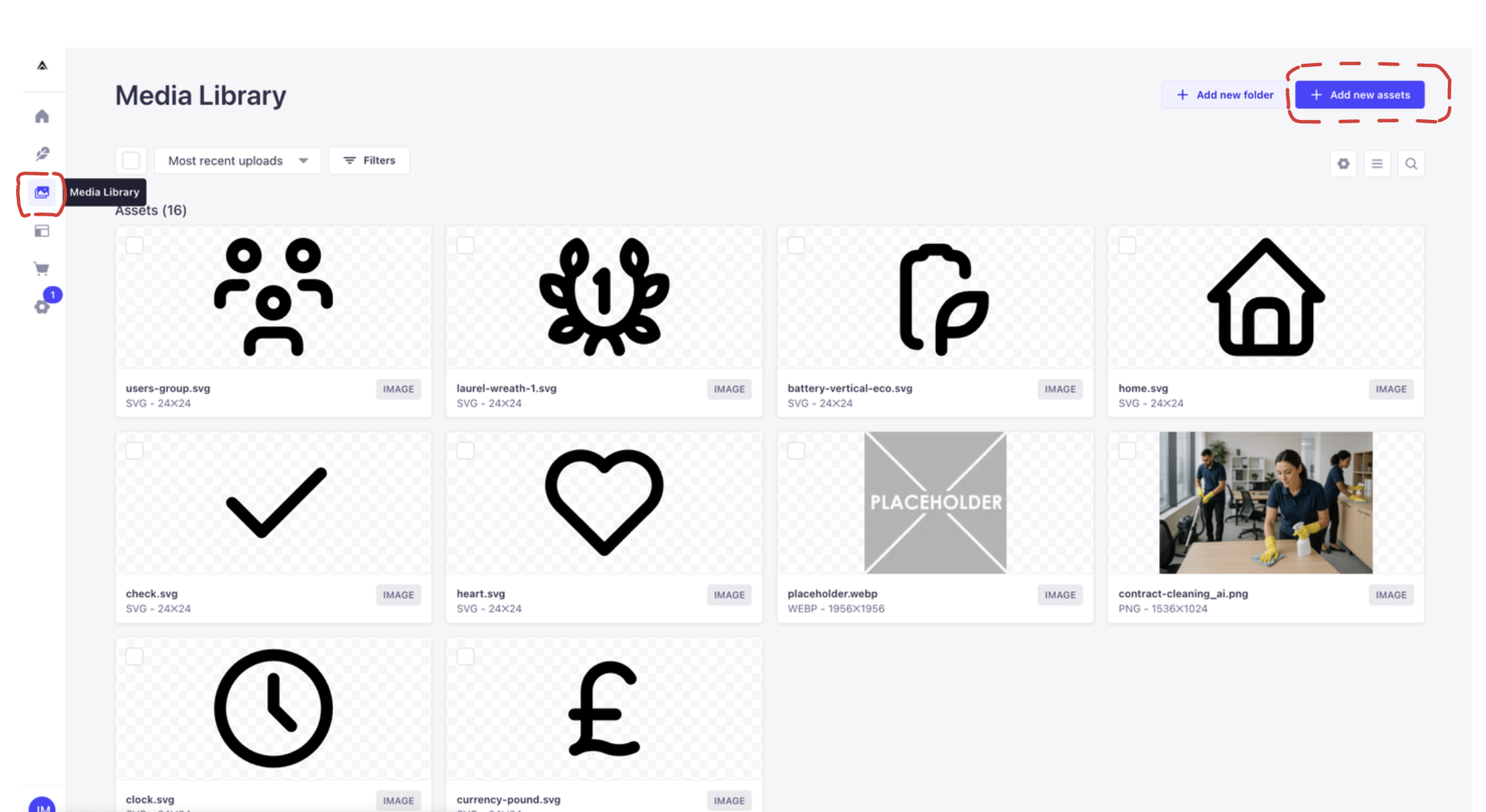
- Click “Upload assets” or “Add new assets” or drag files into the upload area
- Select one or multiple files from your computer
- Wait for the upload to complete
Method 2: From Content Editor
- While editing content, click on the media field
- Choose “Browse files” or drag files directly
- Select existing media or upload new files
- Click “Add assets” to confirm
Organizing Media
Creating Folders
- Click “Create new folder” in the Media Library
- Name your folder appropriately
- Use folders to organize media by:
- Content type
- Date
- Campaign
- Project
Moving Files
- Select the files you want to move
- Click “Move to” in the top menu
- Select the destination folder
- Confirm the move
Best Practices for Images
Image Requirements
- Formats: Prefer WebP for web images
- Size: Keep files under 5MB when possible
- Dimensions: Upload at the largest size needed
- Names: Use descriptive, URL-friendly names
Image Optimization Tips
- Compress images before uploading
- Use appropriate image dimensions
- Consider loading time impact
- Add alt text for accessibility
Managing Media Assets
Editing Asset Information
- Click on an asset to open its details
- Edit the following:
- Alternative text
- Caption
- File name
- Save your changes
Deleting Media
- Select the files to delete
- Click the delete button
- Confirm deletion ⚠️ Note: Deleting media is permanent
Media Usage Guidelines
File Naming Conventions
- Use lowercase letters
- Replace spaces with hyphens
- Keep names descriptive but concise
- Include relevant keywords
Organization Tips
- Create a clear folder structure
- Use consistent naming patterns
- Regular cleanup of unused media
- Document your organization system
Troubleshooting
Common issues and solutions:
-
Upload Failed
- Check file size limits
- Verify file type is supported
- Ensure stable internet connection
-
File Not Showing
- Clear browser cache
- Check file permissions
- Verify file format compatibility
-
Slow Media Library
- Optimize large files
- Clean up unused assets
- Check internet connection
Need Help?
If you encounter issues with media management:
- Check this documentation first
- Contact Andesphere support for assistance
- Consider joining our community forums