Managing Content in Strapi
The Content Manager is where you’ll spend most of your time in Strapi. This guide will walk you through the essential tasks of content management.
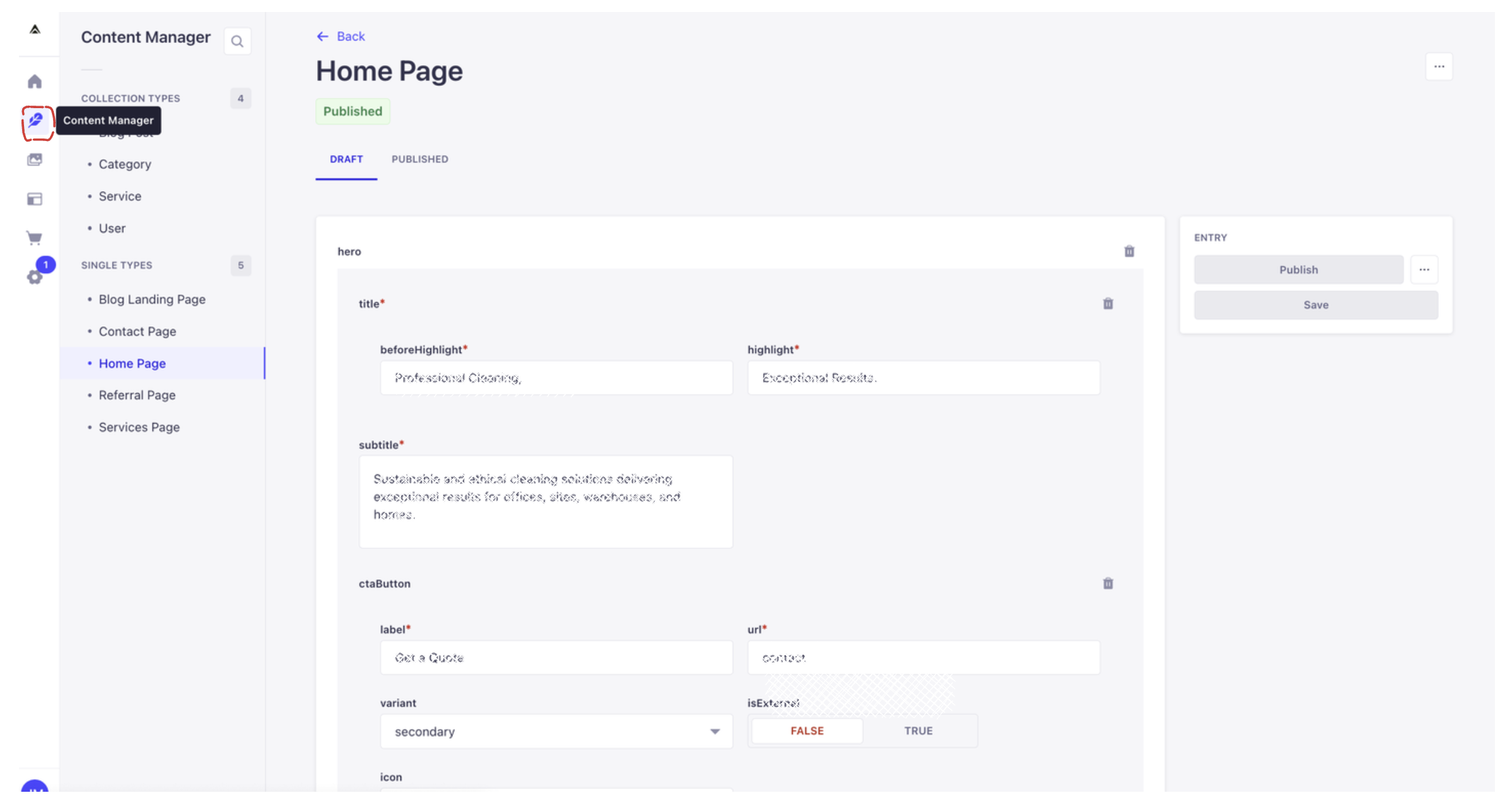
Accessing the Content Manager
- Log in to your Strapi dashboard
- Click on “Content Manager” in the left sidebar
- You’ll see a list of all your content types
Understanding Content Types
In Andesphere, we use two main types of content structures:
Single Types
Single types are used for unique, standalone pages. Each single type represents a specific page in your website, such as:
- Home page
- Contact page
- Blog page
- About page
These are pages that exist only once in your website and have their own unique structure and content.
Collection Types
Collection types are used for repeatable content that you’ll often reference within your single types. They work like a database of related items. Common examples include:
- Blog posts
- Services
- Team members
- Projects
For example, when managing your blog:
- You create individual blog posts in the Blog collection type
- In your Blog page (a single type), you can then choose which blog posts to display
- This gives you flexibility to feature specific posts, create different layouts, or filter content as needed
This relationship between single types and collection types allows for dynamic content management. For instance, you could show featured blog posts on your home page while displaying all posts on your blog page.
Editing Existing Content
- Click on the content type in the left sidebar
- Find the entry you want to edit in the list
- Click on the entry to open it
- Make your changes
- Click “Save” to update
Working with Languages
To switch between languages while editing:
- Locate the language selector at the top of the page
- Select the language you want to edit
- Make necessary changes in that language
- Save your changes
- Repeat the process for other languages if needed
Content Status
Your content can have different states:
- Draft: Content is saved but not published
- Published: Content is live and accessible
- Archived: Content is neither draft nor published
Best Practices
- Save Frequently: Use the “Save” button often while working
- Preview Before Publishing: Use the preview feature when available
- Check All Languages: If using multiple languages, verify content in each
- Use Version History: Check the version history if you need to revert changes
Tips for Efficient Management
- Take advantage of filters to find content quickly
- Use the search function for specific entries
- Sort columns to organize your content view
- Customize your view using the view settings
Need Help?
If you encounter any issues while managing content:
- Check error messages for specific guidance
- Refer to this documentation for step-by-step instructions
- Contact Andesphere support if you need additional assistance